We offer a 50% discount on all our software from today through January 7. Please use the coupon NEW-YEAR on this page.
The fine print: – After you purchase TeraCopy Pro it may be used indefinitely. – Upgrades to future versions of the software will be free for the lifetime of the product. – TeraCopy Pro is licensed per user, so if more people are going to use TeraCopy Pro you will need to purchase additional copies. – Each license allows installation on all owned computers, and TeraCopy Pro may be used at exactly the same time on each of them. – Transfer of a license to another owned computer is allowed. – License activation isn’t required.
Transferring files between your Android phone and Windows PC just became much easier, thanks to Microsoft’s latest integration of Android devices directly into File Explorer. This seamless connection allows you to access your phone’s internal storage over Wi-Fi, eliminating the need for USB cables. In this guide, we’ll walk you through setting up this feature and using it with TeraCopy.
Prerequisites
A Windows 11 or Windows 10 PC with the latest updates installed.
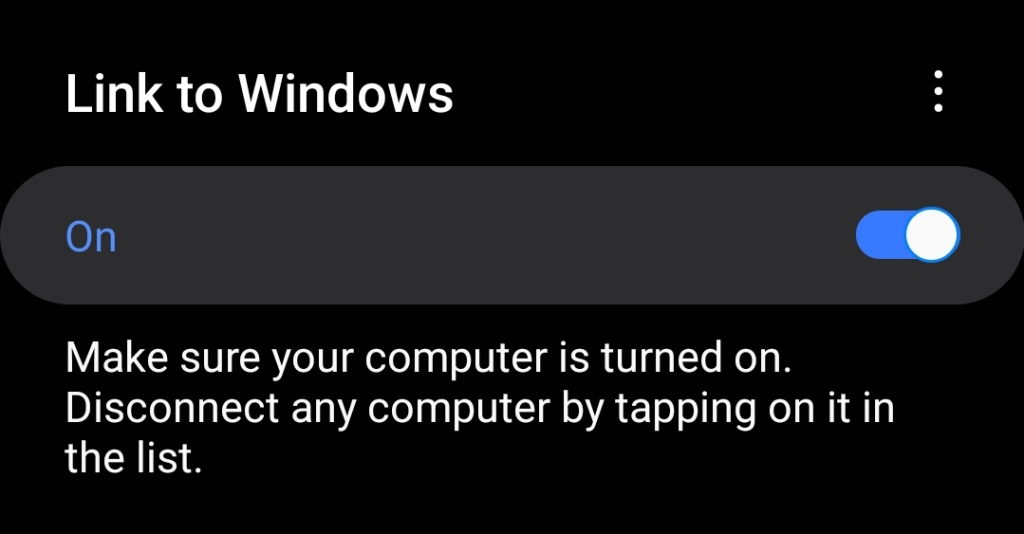
An Android phone running the latest version of the Link to Windows app.
Both devices connected to the same Wi-Fi network.
TeraCopy installed on your Windows PC.
Updating Necessary Components
Cross-Device Experience Host
The Android integration in File Explorer is managed by a system component called Cross-Device Experience Host. Ensure it’s updated to the latest version:
Grant all necessary permissions for the app to function correctly.
Enabling Access on Windows
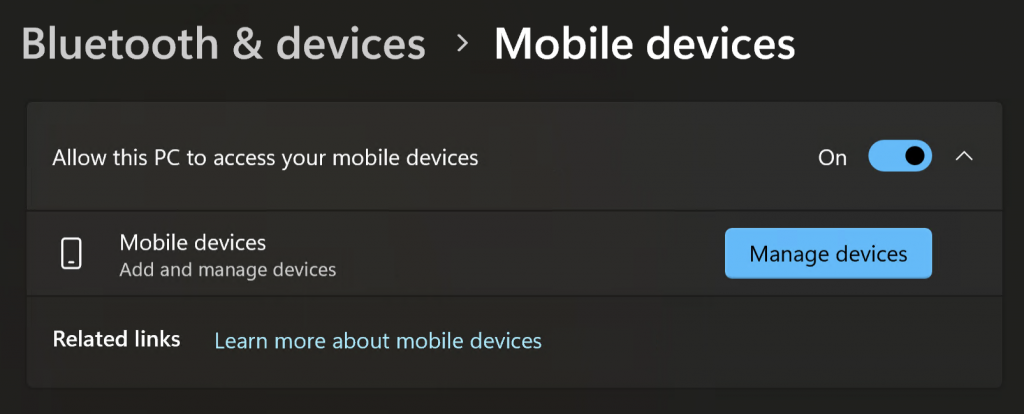
Allow PC to Access Mobile Devices:
Go to Settings > Bluetooth & devices > Mobile devices.
Toggle on Allow this PC to access your mobile devices.
Click on Manage devices and add your phone if necessary.
Accessing Your Android Phone in File Explorer
Open File Explorer:
Press Win + E or click the File Explorer icon.
Locate Your Phone:
In the left sidebar, you should see your phone’s name.
Click on your phone’s name to access its internal storage.
Using TeraCopy to Transfer Files
While you can’t currently set TeraCopy as the default copy handler when transferring files from your Android phone via the File Explorer integration, there’s a simple workaround:
Open TeraCopy:
Launch TeraCopy on your PC.
Select Files from File Explorer:
Navigate to the files on your Android device using File Explorer.
Drag and Drop into TeraCopy:
Select the files or folders you wish to copy.
Drag them from the File Explorer window and drop them into the TeraCopy window.
Choose Destination:
In TeraCopy, click Browse to select your PC’s destination folder.